

Understanding Terminologies
- Patient Profile
A patient profile is a centralized record in the DigiMEDSPA portal that contains all relevant information about a patient, including personal details, medical history, appointments, treatments, billing, and documents. It serves as the primary interface for managing and accessing patient-related data.
- Quick Actions
Quick Actions are shortcut functions available within a patient’s profile that allow users to perform common tasks—such as editing patient information, creating new bookings or procedures, accessing billing, entering vitals, or adding documents—quickly and efficiently without navigating away from the profile.
Accessing and Using Quick Actions in a Patient Profile
-
The user can access a patient profile through the Patients List Screen from two entry points.
-
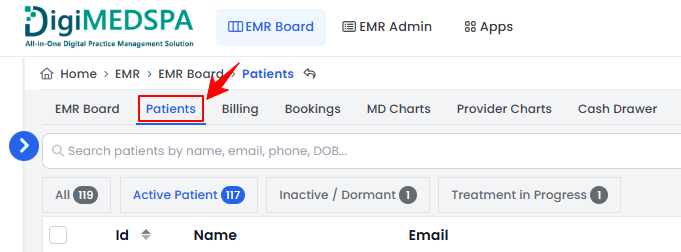
From the EMR Board Tabs, select “Patients.”
-
From the Left Navigation, click on the “EMR Board” dropdown menu and select “Patients.” Alternatively, you can type “Patients” into the search bar in the Left Navigation.
-
-
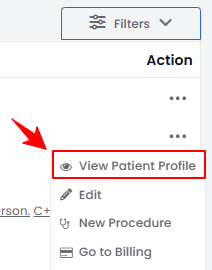
Click anywhere on the patient's data in the patient listing, or click the three dots under the action column next to the specific patient and select “View Patient Profile.”
-
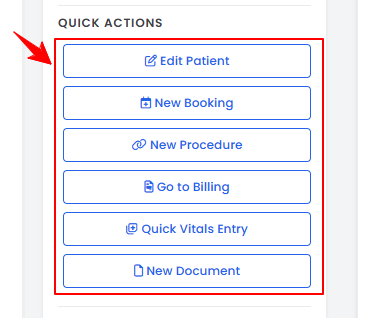
On the Patient Information Screen, users can view a comprehensive summary of all patient information. On the left side of the screen, under the patient’s personal details, you will find “Quick Actions.” Click any Quick Action to perform the corresponding task.
-
Click “Edit Patient” to update the patient’s personal information.
-
Click “New Booking” to create a new appointment for this patient.
-
Click “New Procedure” to add a single-page view or multi-page view procedure for the patient.
-
Click “Go to Billing” to access the patient’s billing information, including bookings across multiple Med SPA locations if the patient has appointments at more than one location.
-
Click “Quick Vitals Entry” to enter vitals using the patient’s vitals form.
-
Click “New Document” to upload a new document for the patient.NoteQuick Actions function as shortcuts—any form opened through these actions will already have the patient’s information pre-filled, saving time and ensuring accuracy.
-
You’re all set
That’s every step of “How to Access and Use Quick Actions in a Patient Profile”. Up next: Set Patient Contact Preferences.