Send and Receive SMS Messages
This user guide provides step-by-step instructions on how to send and receive SMS messages within the DigiMEDSPA Portal. It covers composing, replying, viewing message history, and managing conversations efficiently to enhance communication with patients and staff.
Understanding Terminologies
SMS Message
An SMS (Short Message Service) message is a text-based communication sent from one mobile device to another or through a digital platform. It allows users to exchange short messages, typically up to 160 characters, quickly and efficiently.
Access this link: https://digimedspa.com/ap2/services
Create a New Message
- The user can create a new message by accessing “SMS” in the Communication Apps accessible from three entry points.
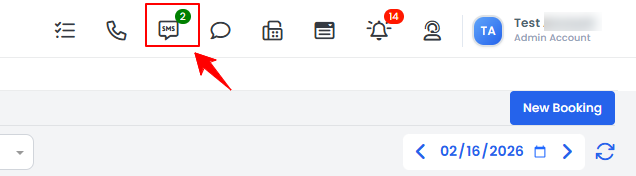
- From the Top Menu Navigation, click on the “SMS” icon.

- Click “Apps” in the Top Menu Navigation to access the applications.

- Navigate to the Communication Apps and click on “SMS.”
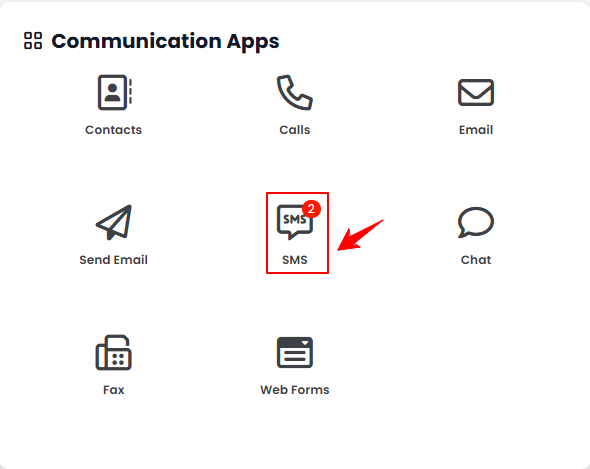
- Navigate to the Communication Apps and click on “SMS.”
- From the Left Navigation, click on the “Communication Apps” dropdown menu, and select “SMS.’’Alternatively, you can type “SMS” into the search bar in the Left Navigation.
- From the Top Menu Navigation, click on the “SMS” icon.
- To create a new message, click on the “+New SMS” button in the top right corner of the screen.Note: Click “Add to Contact,” “Add to Lead,” or “Add to Patient” to create or link a new or existing contact, lead, or patient accordingly.
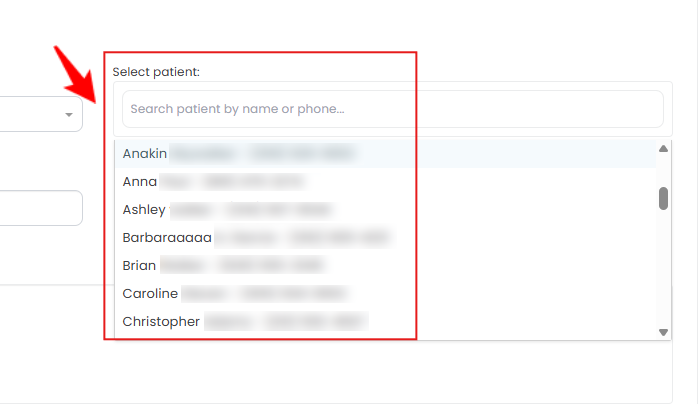
- Select the “From” contact from the dropdown menu, select the patient, then enter the recipient’s number in the “To” field to send the message.
- Enter text in the “Text Message” field, add an image if needed by clicking “Choose Files,” and then click “Create Message” to send.
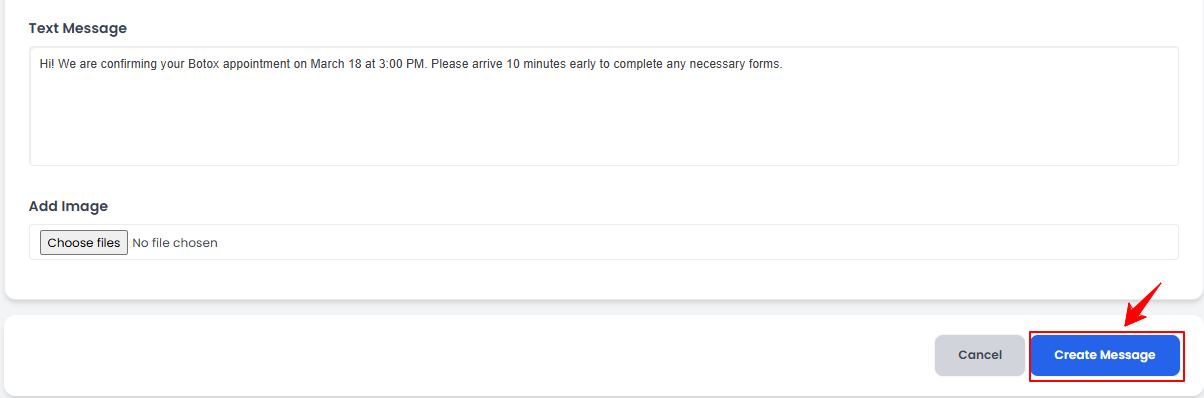
The SMS Message has been successfully sent!
Receive SMS Message
- To view all the received messages, click on the “All Messages” button in the top right corner of the Messages Screen.
- A complete list of all sent and received messages will be displayed.