

Understanding Terminologies
- Discount Groups
Discount groups are special pricing offers for patients who book services as a group, allowing them to receive reduced rates for procedures or packages. These discounts are designed to encourage multiple patients to schedule appointments together, promoting increased attendance and engagement while providing cost savings for patients.
Part 1 of 3
Add Discount Groups
-
The user can create a discount group through Discount Groups List Screen accessible via two entry points.
-
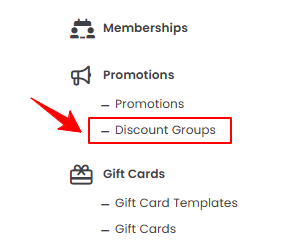
From the EMR Admin, click on “Discount Groups” under “Promotions.”
-
From the Left Navigation, open the “EMR Admin” dropdown menu, select “Promotions,” and then choose “Discount Groups” from the subsequent dropdown menu. Alternatively, you can type “Discount Groups” into the search bar in the Left Navigation.
-
-
To create a new discount group, click on the “New Discount Group‘’ button in the top right corner of the screen.
-
Enter an appropriate Name for the discount group. Then select Discount Type from the dropdown menu.
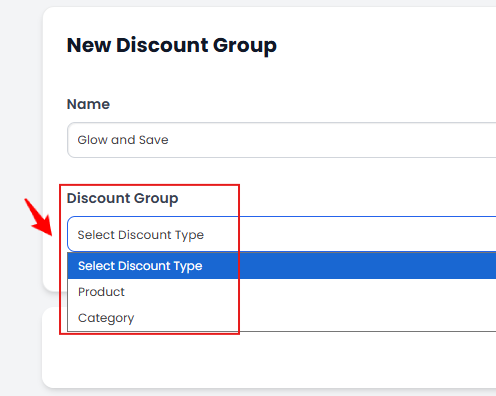
-
If you select ‘’Product’’ as the Discount Type, then click on ‘’Add New Discount Group Product.’’
-
Select the Product from the dropdown menu. Once done, click ‘’Create Discount Group’’ to add a new discount group for the selected product.
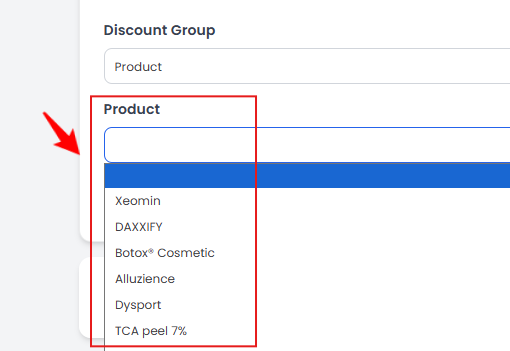 NoteYou can add more than one product to the discount group by again clicking on the ‘’Add New Discount Group Product’’ or you can click on ‘’Remove’’ to remove a product from the discount group.
 -
If you select ‘’Category’’ as Discount Type, then click on ‘’Add New Discount Group Category.’’
-
Select the Category from the dropdown menu. Once done, click ‘’Create Discount Group’’ to add a new discount group for the selected category.
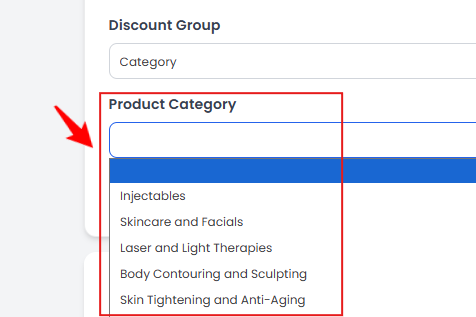 Note: You can add more than one category to the discount group by again clicking on the ‘’Add New Discount Group Category’’ or you can click on ‘’Remove’’ to remove a category from the discount group.
The Discount Group has been successfully created!
Part 2 of 3
View Discount Groups
-
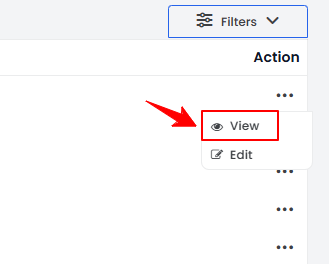
To view a specific discount group from the list, click the three dots under the action column and select "View," or simply click anywhere on the discount group’s data.
-
The Discount Group View Screen will open, displaying the discount group details.
Part 3 of 3
Edit Discount Groups
-
There are two ways to edit an existing discount group.
-
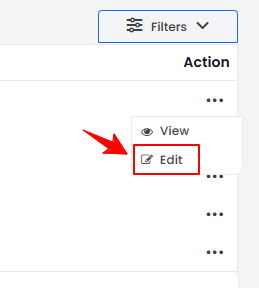
From the discount groups list, click on three dots under the action column and select "Edit" for the specific discount group.
-
On the Discount Group View Screen, click on the ‘’Edit Discount Group’’ button on the top right corner of the screen.
-
-
Make the desired changes in the discount group. Once done, click “Update Discount Group.”
The discount group has been successfully edited!
You’re all set
That’s every step of “Add / View / Edit Discount Groups”. Up next: Manage Promotions.