Understanding Terminologies
- Access Logs
Access logs are records that track and document user activity within a system. They provide detailed information about each user's actions, including who accessed specific modules, when the access occurred, and what actions were performed. In the DigiMEDSPA Portal, access logs help monitor user interactions, ensuring transparency, security, and compliance.
View Access Logs
-
The user can view access logs by navigating “Access Logs” from two entry points.
-
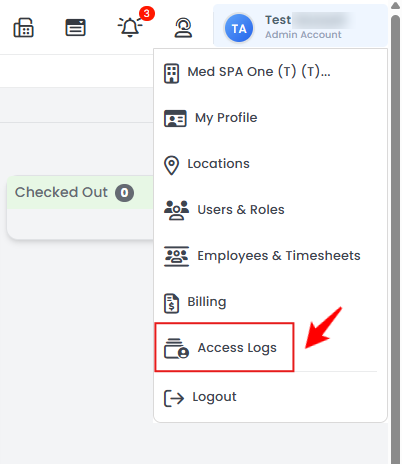
From the Top Right Profile dropdown menu, select “Access Logs.”
-
From the Left Navigation, click on the “My Account” dropdown menu and select “Access Logs.” Alternatively, you can type “Access Logs” into the search bar in the Left Navigation.
-
-
The Access Logs List Screen will open, displaying details of each user activity, including User, Patient Name, IP Address, Module, Action, Parameters, and Time.
 NoteThe “User” refers to the individual who performed the activity, while the “Patient Name” indicates the patient whose profile the activity was performed on, if applicable. The “IP Address” tracks the device used for access. The “Module” indicates the system section accessed (e.g., Bookings, Billing), and the “Action” describes the operation performed (e.g., Viewed, Edited). “Parameters” provide additional action details, and “Time” records when the activity occurred.
 -
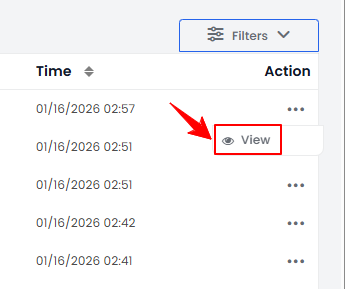
To view details of a specific access log, either click anywhere on the log entry or click the three dots under the action column next to the specific log and select "View."
-
The Access Log View Screen will open, displaying all log details.NoteAccess logs can only be viewed and cannot be edited or deleted, as they provide a permanent record of your account activity and user actions.
You’re all set
That’s every step of “Manage Access Logs”. Up next: Manage Permissions for Users.