

Understanding Terminologies
- Locations
Locations refer to the physical addresses where your Med SPA operates. This includes all branches or facilities where services are offered. Adding accurate location information in the EMR portal allows patients to find and book appointments at the correct facility.
- Disable Location
Disabling a location means to temporarily remove it from bookings, listings, and other portal features, making it inactive until re-enabled. This allows you to pause operations without permanently deleting the Med SPA location.
Part 1 of 3
Disable a Med SPA Location
-
The user can disable a Med SPA location by navigating “Locations” from two entry points.
-
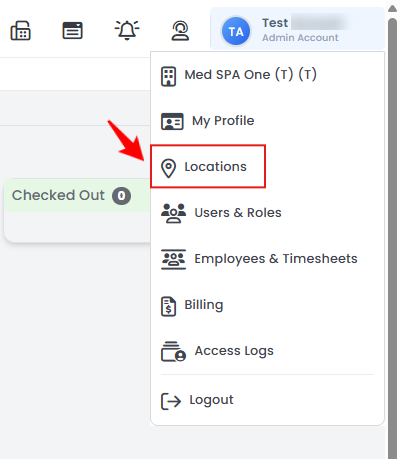
From the Top Right Profile dropdown, select “Locations.”
-
From the Left Navigation, click on the “My Account” dropdown and select “Locations.” Alternatively, you can type “Locations” into the search bar in the Left Navigation.
-
-
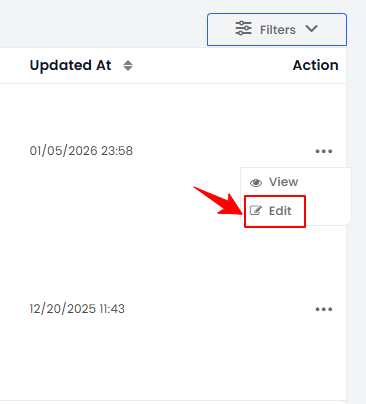
From the list of added locations, find the location you want to disable. Click the three dots in the Action column and select "Edit" for that location.
-
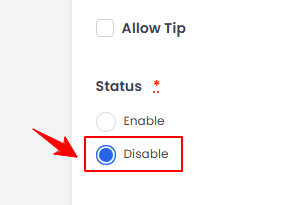
Under the "Status" section, select "Disable." Then, click "Update Location" to save the changes and disable the Med SPA location.
Part 2 of 3
Enable a Med SPA Location
-
From the list of added locations, find the disabled location you want to enable. Click the three dots in the Action column and select "Edit" for that location.
-
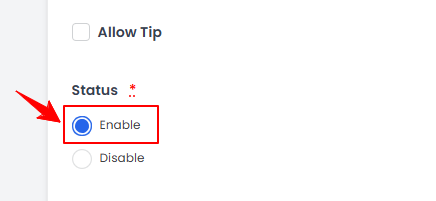
Under the "Status" section, select "Enable." Then, click "Update Location" to save the changes and enable the Med SPA location.
Part 3 of 3
Check Status for the Med SPA Location
-
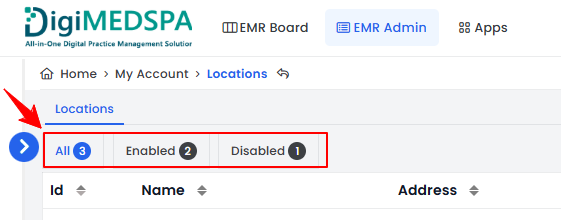
To check the status of your Med SPA location, go to the Locations list and review the status indicators in the top scopes bar.
-
Click on the “Enabled” scope to view the list of all active locations.
-
Click on the “Disabled” scope to view the list of all inactive locations.NoteYou can also check the status of your Med SPA locations in the Status column on the Locations List screen, where it will display either "Enabled" or "Disabled."
You’re all set
That’s every step of “How to Disable a Med SPA Location?”. Up next: Enable Cash Drawer for a Med SPA Location.