

This user guide provides step-by-step instructions for claiming your Med SPA business listing in the DigiMEDSPA Directory.
Understanding Terminologies
- Listing
A listing on the DigiMEDSPA Directory refers to a detailed business profile for a Med SPA, including its name, address, contact details, services offered, operating hours, pricing, reviews, and photos. This profile helps potential patients easily find and choose a Med SPA that meets their needs.
Steps to Claim Your Listing
-
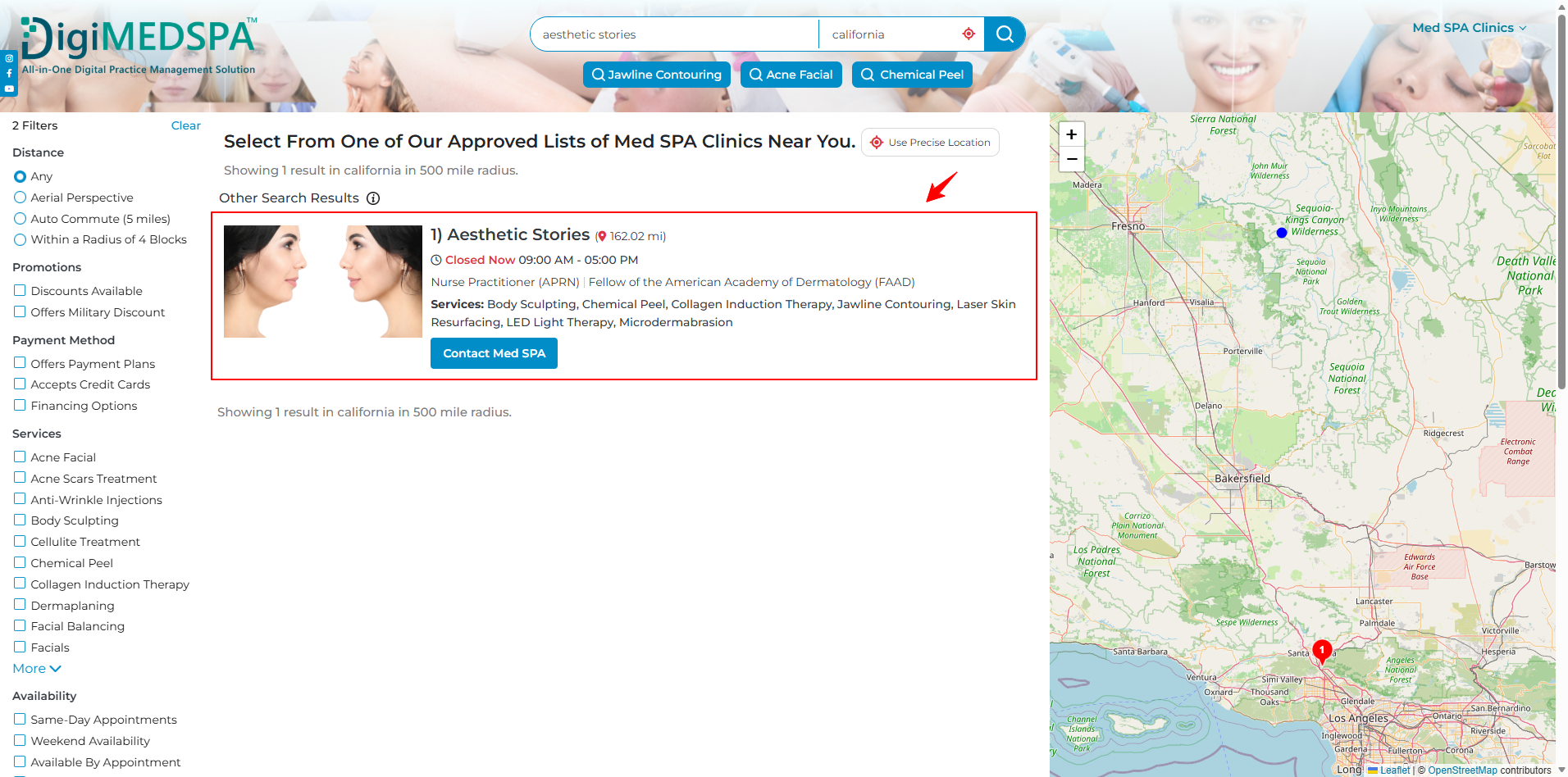
In the search box, enter your Med SPA business name and location, then click the search icon to find your listing.
Find Med SPA Services and Clinics Near You!
-
You will be directed to the DigiMEDSPA Directory Listing search results page, where your Med SPA business profile is listed. Click on your business listing.
-
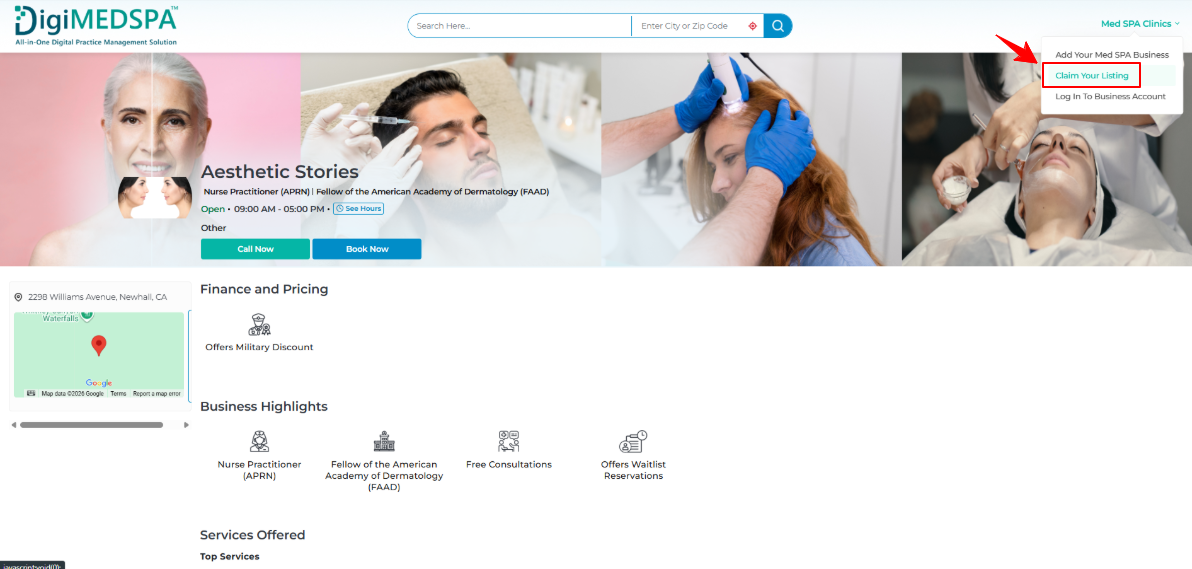
Once you are in your Med SPA business profile, hover over the “Med SPA Clinics” in the top right corner of the screen, and from the dropdown menu select ‘’Claim Your Listing.’’
-
The Claim Your Listing form will pop up. In Step 1, enter your First and Last Name, Email, and Captcha Code. Press the “Next” button to proceed.
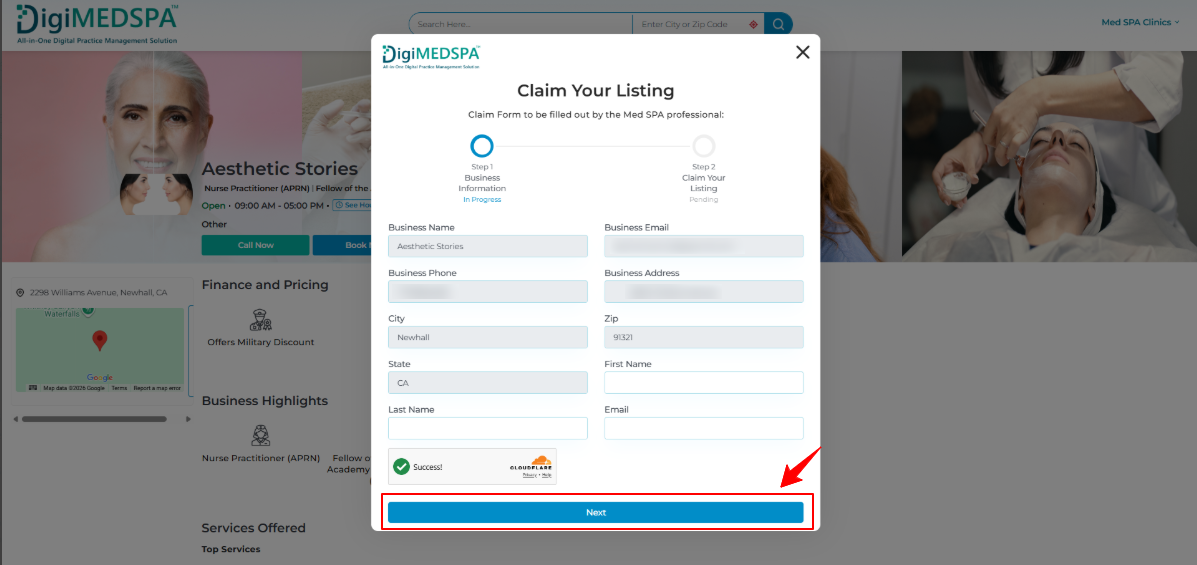 NoteSince you have added your Med SPA business to the directory, your business details, including the Business Name, Email, Phone, Address, City, Zip Code, and State, will be automatically pre-filled.
 -
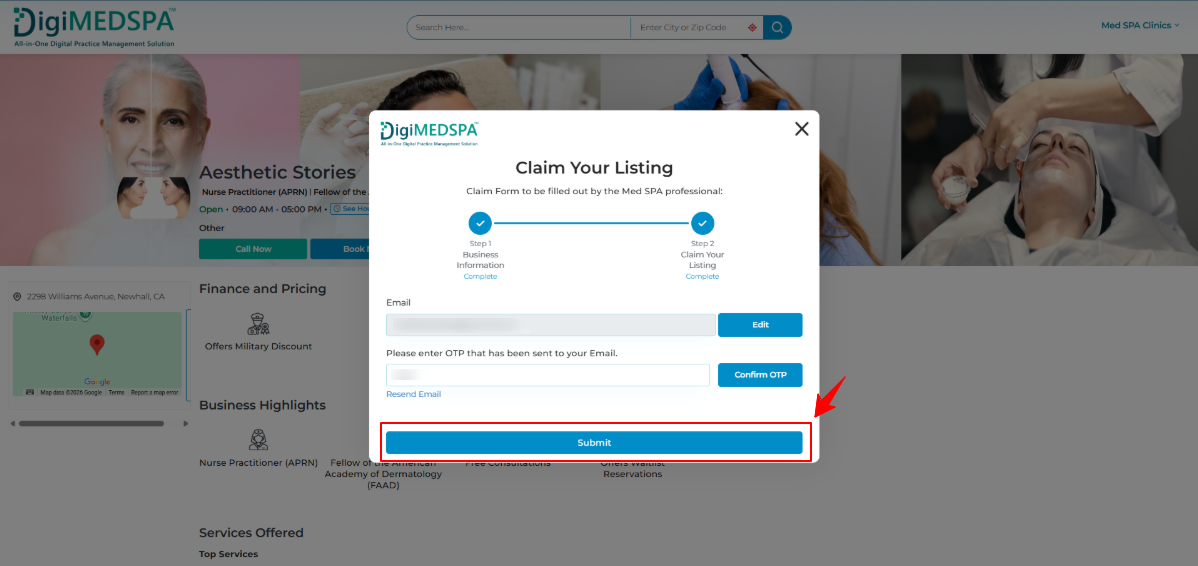
In Step 2, enter the OTP sent to your email and press the “Submit” button.
-
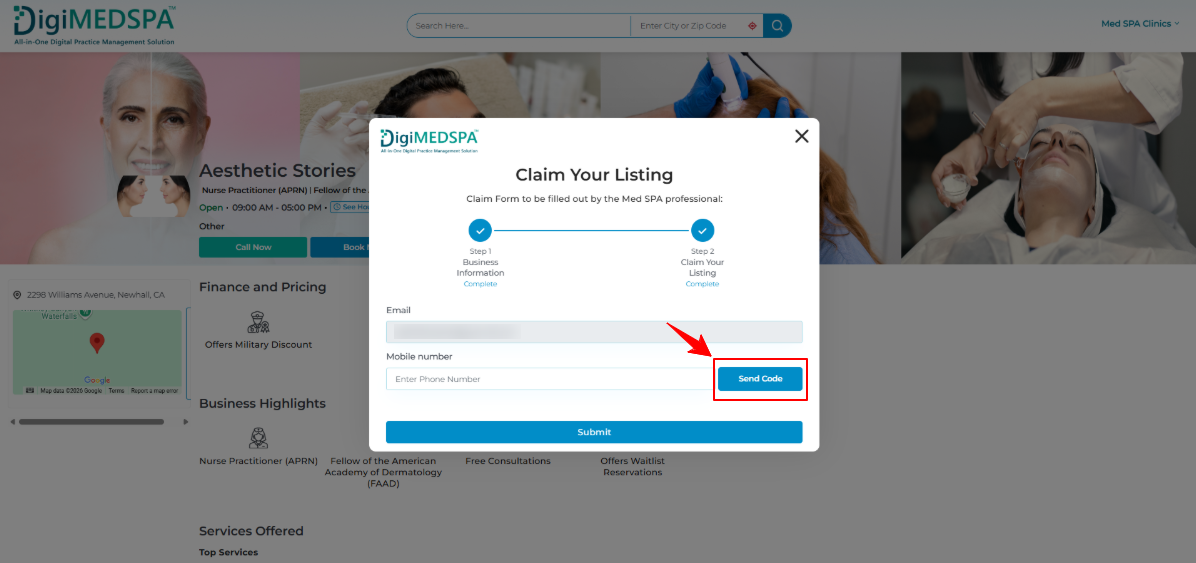
Next, enter your mobile number and click “Send Code” to receive a verification code via SMS.
-
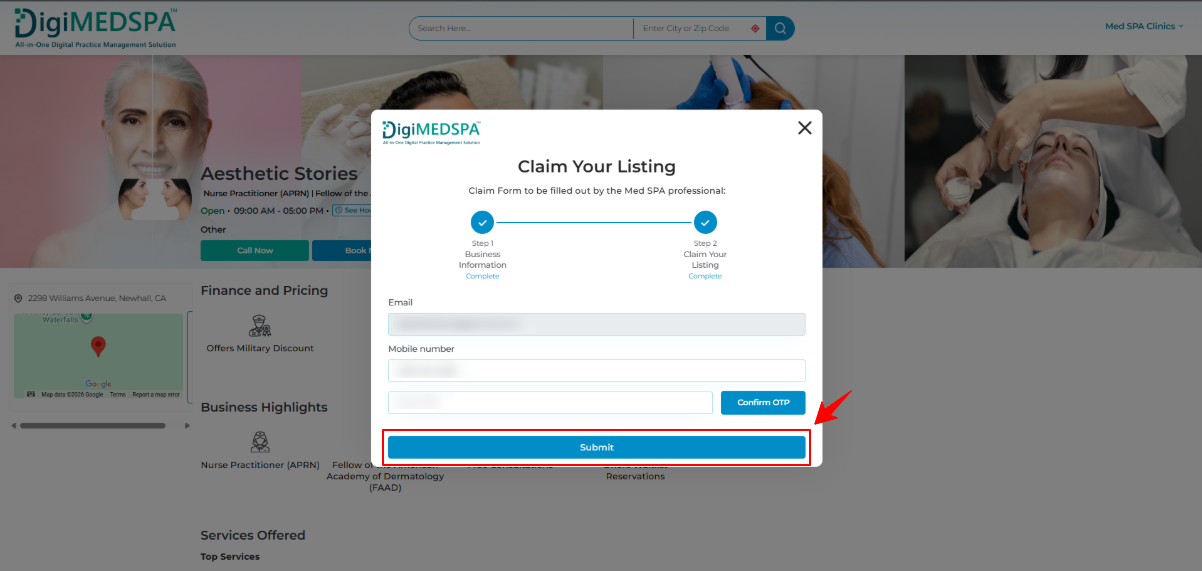
Enter the verification code received on your mobile number, then click “Submit” to continue.
-
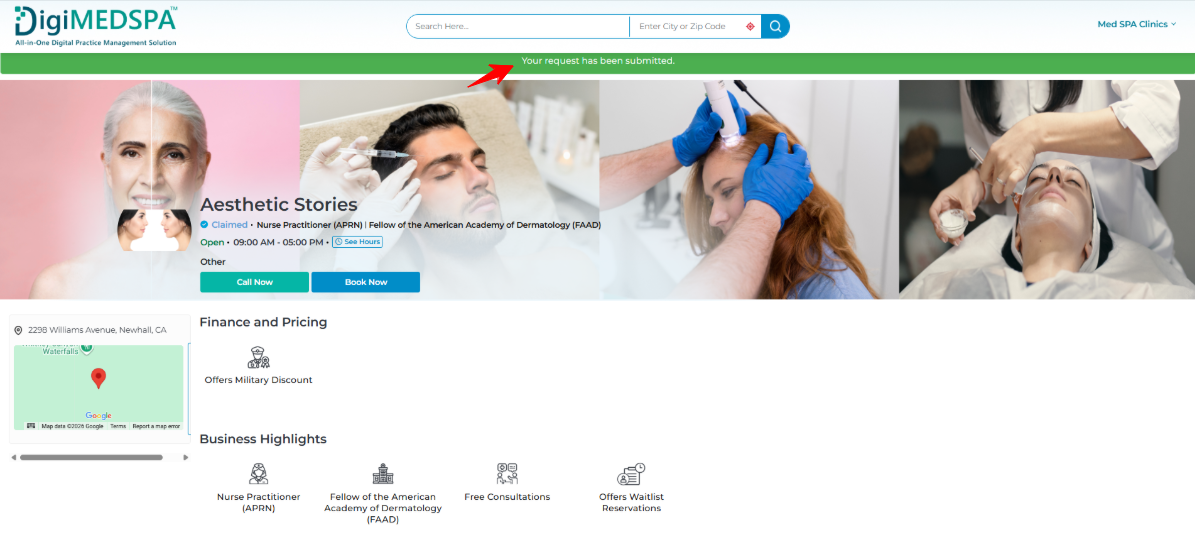
A confirmation message indicating that your request to claim the listing has been successfully submitted will appear on your listing page.
-
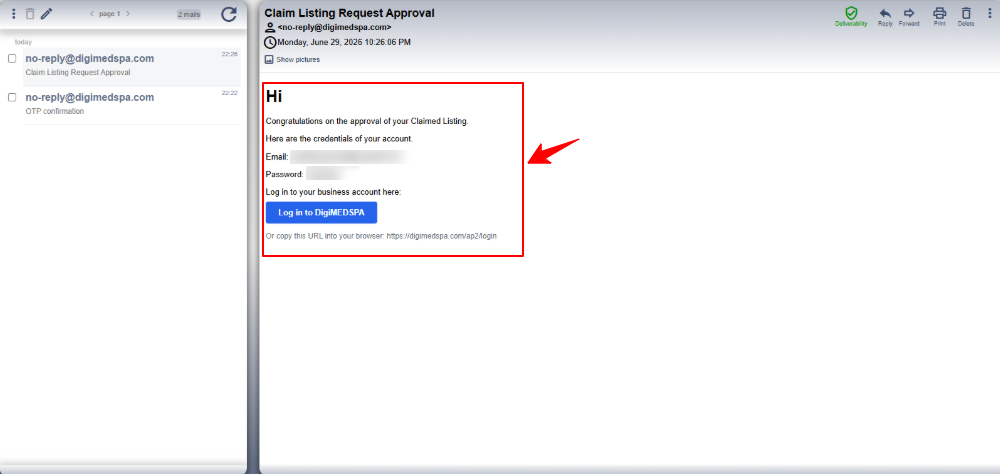
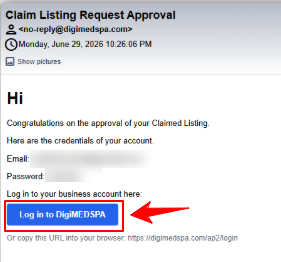
After your claim request is submitted, you will receive a Claim Listing Request Approval email from DigiMEDSPA. This email will include your business account login credentials, including your registered email address, temporary password, and a login button/link.
-
Click Log in to DigiMEDSPA from the approval email, or copy and paste the login URL into your browser.
-
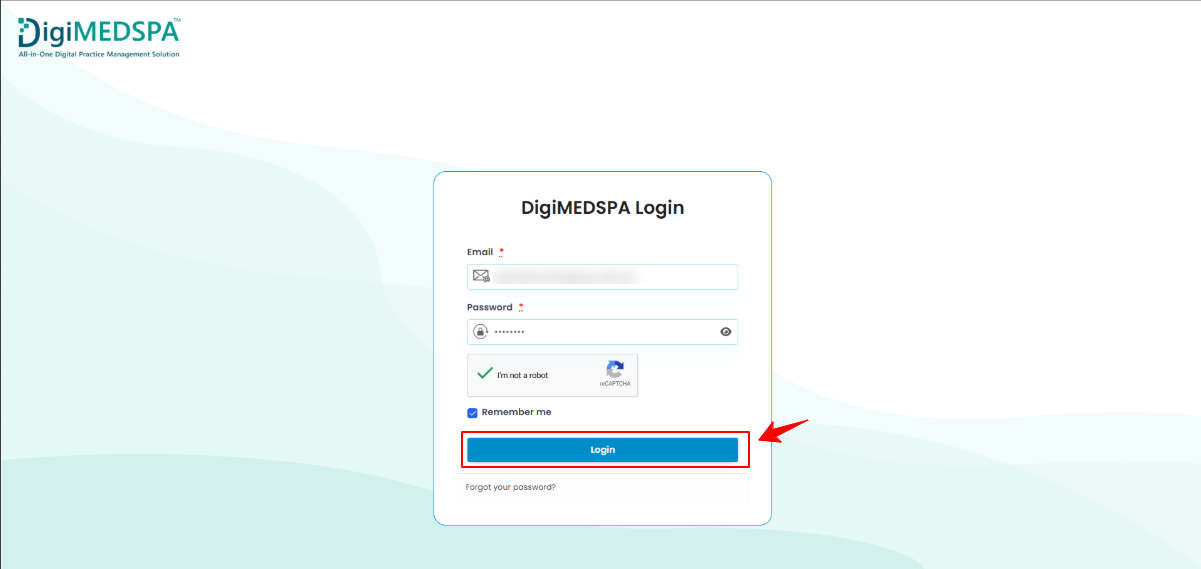
On the DigiMEDSPA Login page, enter the email address and temporary password provided in the approval email. Complete the reCAPTCHA verification, then click Login.
-
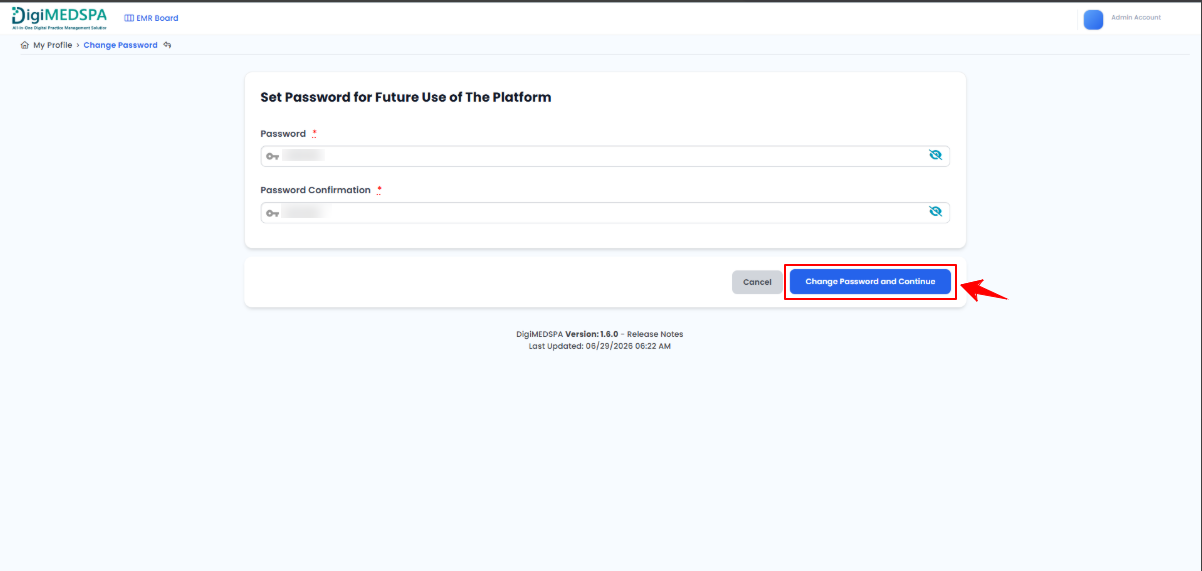
After logging in for the first time, you will be asked to set a new password for future use of the platform. Enter your new password in the Password field, then re-enter the same password in the Password Confirmation field. Once done, click Change Password and Continue to save your new password.
-
You will now be prompted to log in to your DigiMEDSPA business account using your email address and newly created password.
-
After logging in, you will be directed to your Directory Listing dashboard. The dashboard includes the following main sections:
-
Dashboard
This section shows your listing performance highlights, including impressions, clicks, CTR, business profile page visits, clicks to call, lead forms, and CTA clicks. You can also review analytics over time and track CTA actions such as Book an Appointment, Call Now, Request a Phone Call, and Website Visits.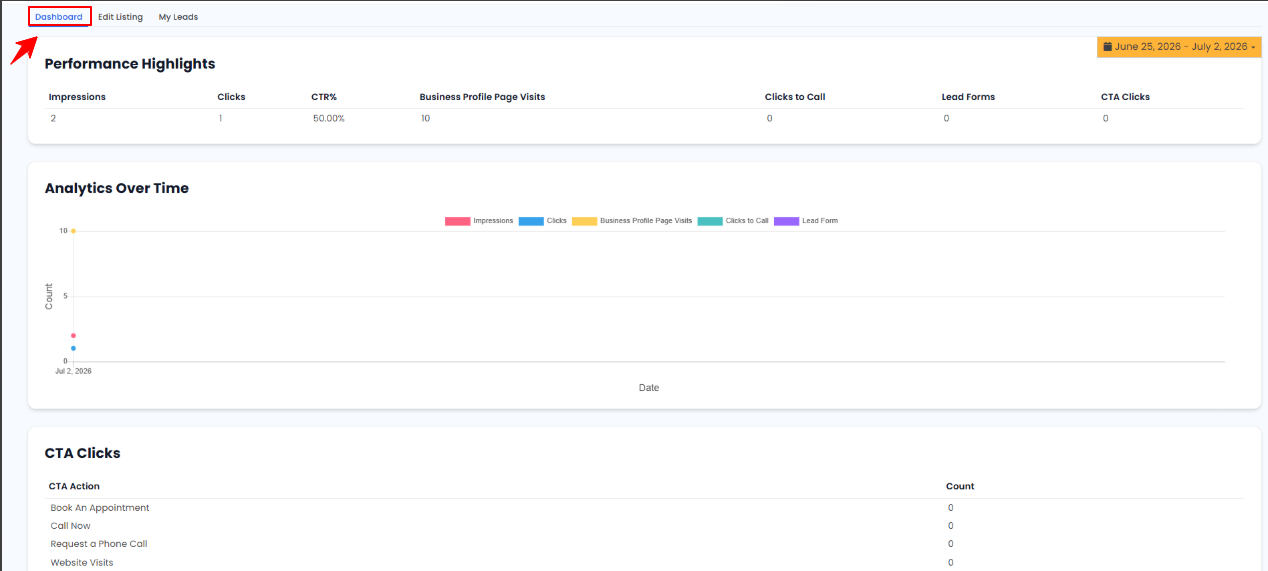
-
Edit Listing
This section allows you to review and update your business profile information, including business email, business name, logo, years in business, phone number, website address, street address, city, state, county, zip code, country, and accreditations. After making updates, you can preview your listing before saving or submitting changes.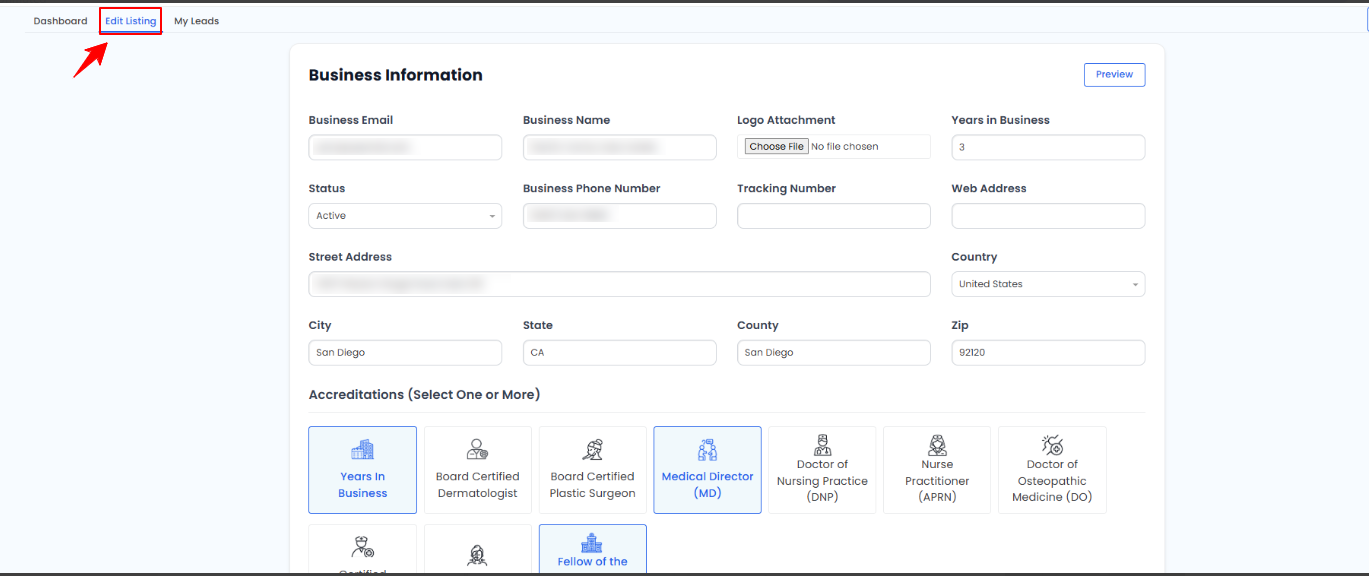
-
My Leads
This section displays all leads received through your DigiMEDSPA Directory Listing. Leads are organized by type, including Request for Appointment, Request for Call Back, Call Now, Book Now, Visit Website, and Indirect Leads. If there are no leads yet, the system will display a message indicating that no directory listing leads have been found.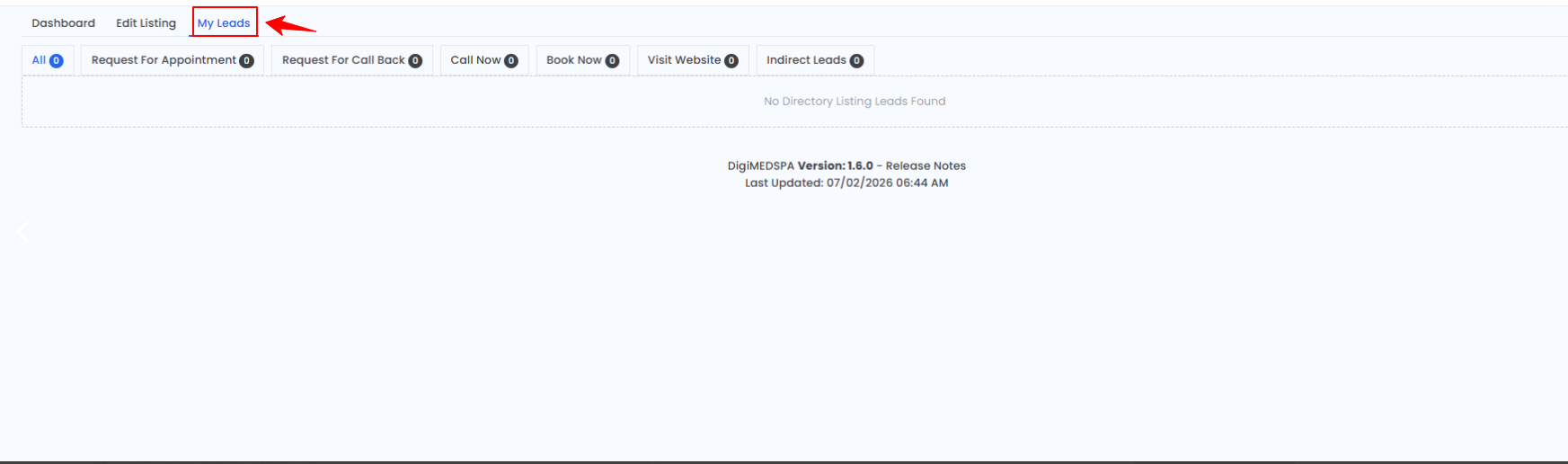 Your business listing is now claimed, and you can manage your profile, track performance, and review incoming leads directly from your DigiMEDSPA account.
-
You’re all set
That’s every step of “How To Claim Your Listing”.